
Funnel Marketing
[Pro Tip] Google Forms to LINE Notifications: 3 Ways Compared
Published
LINE Notify is gone, so how do you get a LINE alert when a Google Form is submitted? We compare Apps Script + Messaging API, n8n/Make/Zapier, and an all-in-one form + CRM on cost, skill and follow-up.
Contents
- Why connect Google Forms to LINE at all?
- What changed when LINE Notify shut down?
- Option A: Google Apps Script + Messaging API
- Option B: A workflow in n8n, Make or Zapier
- Option C: An all-in-one form + CRM that follows up for you
- The 3 options compared: cost, skill and follow-up
- Which option should you choose?
- FAQ
To get a LINE alert the moment a Google Form is submitted, you now need the LINE Official Account Messaging API — either directly, through a workflow platform, or via a form tool with a built-in CRM. The old favourite, LINE Notify, shut down on March 31, 2025, so most "set it up in five minutes" tutorials no longer work. This guide walks through three approaches that still do, and compares them on cost, skill, upkeep and — the part most guides skip — whether you can actually follow up with the customer.
Why connect Google Forms to LINE at all?
Google Forms is free and easy, which is why so many studios and small businesses use it to collect enquiries, bookings, event sign-ups and course questions. The trouble starts after someone hits submit:
- Nobody sees it in time. Google Forms' built-in "email notifications for new responses" only go to the form owner's inbox, which many owners check once a day.
- Slow replies lose deals. People asking for a quote usually ask several businesses at once, and the first to reply has the best chance.
- The team doesn't know who owns it. If only one person is notified, nobody else follows up.
In Taiwan, owners and teams live in LINE all day (in Hong Kong it's more often WhatsApp), so "submit the form, get a LINE ping" is a very common request. If you're still deciding between Google Forms and a proper lead page, read why a landing page beats a Google Form for collecting leads.
What changed when LINE Notify shut down?
In October 2024 LINE announced that LINE Notify would end on March 31, 2025; from April 1 every API stopped working. LINE Notify was popular because it was free and simple: get a token, write a few lines, push a message to yourself or a group. The official replacement is the LINE Messaging API, which differs in three ways:
- You need a LINE Official Account. Since September 2024, Messaging API channels are created by setting up an Official Account first and enabling the API from there.
- Push messages use your message allowance. Per the Messaging API pricing page, push, broadcast and other account-initiated messages count toward the monthly allowance; only reply messages to a user's own message are free. A form submission isn't a LINE message from the user, so you'll normally use push. At the time of writing (October 2025), Taiwan's free Light plan included 200 messages a month — check the LINE Official Account plans page for current details.
- You need the recipient's user ID. The Messaging API can't message a phone number; it needs a LINE user ID.
Notifying yourself vs following up with the customer
This is where most people get stuck. According to LINE's documentation, you only receive a user ID when someone adds your Official Account as a friend or sends it a message.
- Notifying yourself or your team is easy: you and your colleagues add your own Official Account, note your user IDs (the developer's own ID is shown in the LINE Developers Console), and every submission is pushed to those people.
- Following up with the person who filled in the form is not. A Google Form collects a name, phone number and email — not a LINE user ID, and it can't tell whether that person is your friend on LINE. To reply on LINE you'd need a separate flow that gets the customer to add your account and links their identity; otherwise you follow up by email or SMS.
Decide which of the two you actually need before picking a method.
Option A: Google Apps Script + Messaging API
Best if you can write a little code and only need to notify yourself or your team. Apps Script is Google's built-in scripting environment — nothing to install or host.
Outline:
- Create a LINE Official Account, enable the Messaging API and issue a channel access token.
- Have yourself and your colleagues add the account as a friend, and note the user IDs that should receive alerts.
- Open Apps Script from the form and write a function that reads the response and calls the push API.
- Under Triggers, add an installable "On form submit" trigger.
An illustrative snippet (for understanding the flow — don't hard-code your token):
function onSubmit(e) {
  const props = PropertiesService.getScriptProperties();
  const text = e.response.getItemResponses()
    .map(r => r.getItem().getTitle() + ': ' + r.getResponse())
    .join('\n');
  UrlFetchApp.fetch('https://api.line.me/v2/bot/message/push', {
    method: 'post',
    contentType: 'application/json',
    headers: { Authorization: 'Bearer ' + props.getProperty('LINE_TOKEN') },
    payload: JSON.stringify({
      to: props.getProperty('OWNER_USER_ID'),
      messages: [{ type: 'text', text: 'New form response\n' + text }]
    })
  });
}
Pros: no automation-platform bill, and maximum flexibility.
Watch out for:
- Installable triggers run under the account of the person who created them. If that person leaves or their account is disabled, the alerts stop.
- Apps Script has quotas — for a consumer Gmail account, triggers get 90 minutes of total runtime a day and each execution is capped at 6 minutes. A small business rarely hits them, but they exist.
- When a token expires or LINE or Google changes something, you fix it — and nothing warns you when it breaks.
- The data still sits in a spreadsheet; following up is a separate job.
Option B: A workflow in n8n, Make or Zapier
Best if you don't want to code or already use an automation platform. The flow is usually "new Google Form (or sheet) response → map the fields → call the LINE Messaging API", built from drag-and-drop steps. The three platforms bill differently (pricing models as published at the time of writing):
Pros: no code, and adding "also write to a sheet and email sales" is just a few more steps.
Watch out for: every extra connection is another thing that can break, and the form, sheet, automation platform and LINE Official Account each have their own account and bill. The user-ID limitation doesn't go away either. For a full comparison of the three platforms, see n8n, Zapier and Make for marketing funnels.
Option C: An all-in-one form + CRM that follows up for you
If what you really want isn't just an alert but for every person who fills in the form to be followed up properly, the third route is a form tool with contact management and messaging built in. Take X Lead Funnel's lead forms as an example:
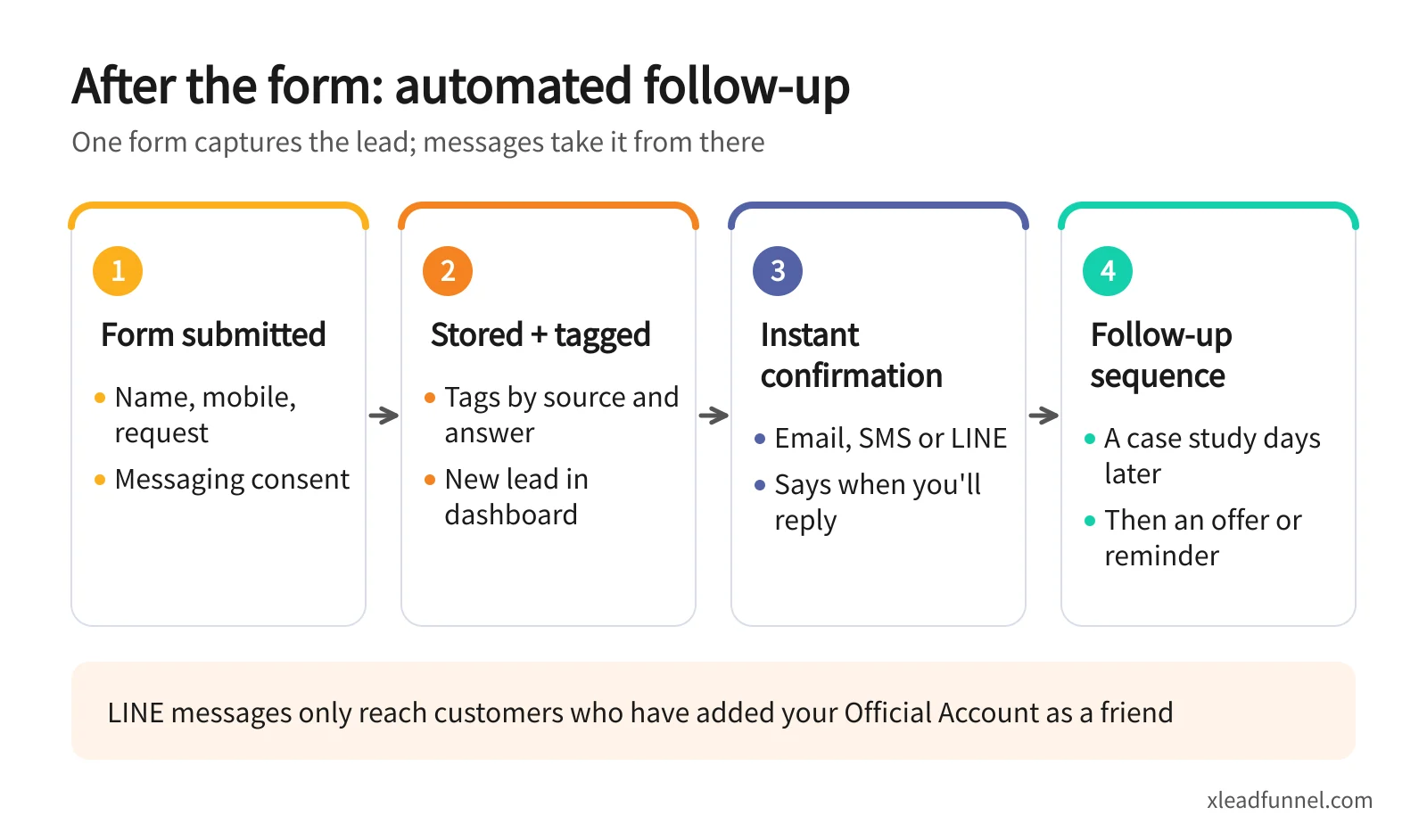
As the diagram shows, it runs in four steps:
- The customer submits the form, leaving a name, mobile number and request, and ticking messaging consent.
- The lead is stored and tagged. It lands in your contact list, tagged by source or answer, and you see it in your dashboard in order of arrival.
- Instant confirmation. The customer gets an acknowledgement telling them when to expect a reply. Form confirmation and reminder emails are included in the service.
- Automated follow-up. Tags drop the customer into a drip sequence — say, a case study a few days later, then an offer or reminder.
To be clear about LINE: X Lead sends email, SMS, LINE and WhatsApp. LINE and WhatsApp require integration, are available on subscription plans only and are charged by credits — and LINE messages still only reach customers who have added your Official Account as a friend. Everyone else gets email or SMS.
Setup steps (using a general enquiry form)
- Sign up free and pick a template. For quotes and contact requests, start with the general enquiry form.
- Trim the fields. Keep name, mobile, email and request, plus privacy and messaging consent.
- Set up tags by source or by the "enquiry type" answer so you can follow up by segment.
- Check the auto-reply. Say when you'll respond and how to reach you if it's urgent.
- Plan the follow-up in messaging automation across email, SMS or LINE.
- Publish and share the link on your website, Instagram bio and LINE Official Account menu, or print it as a QR code.
For what to send and when, see 5 drip sequence templates for automated follow-up.
The 3 options compared: cost, skill and follow-up
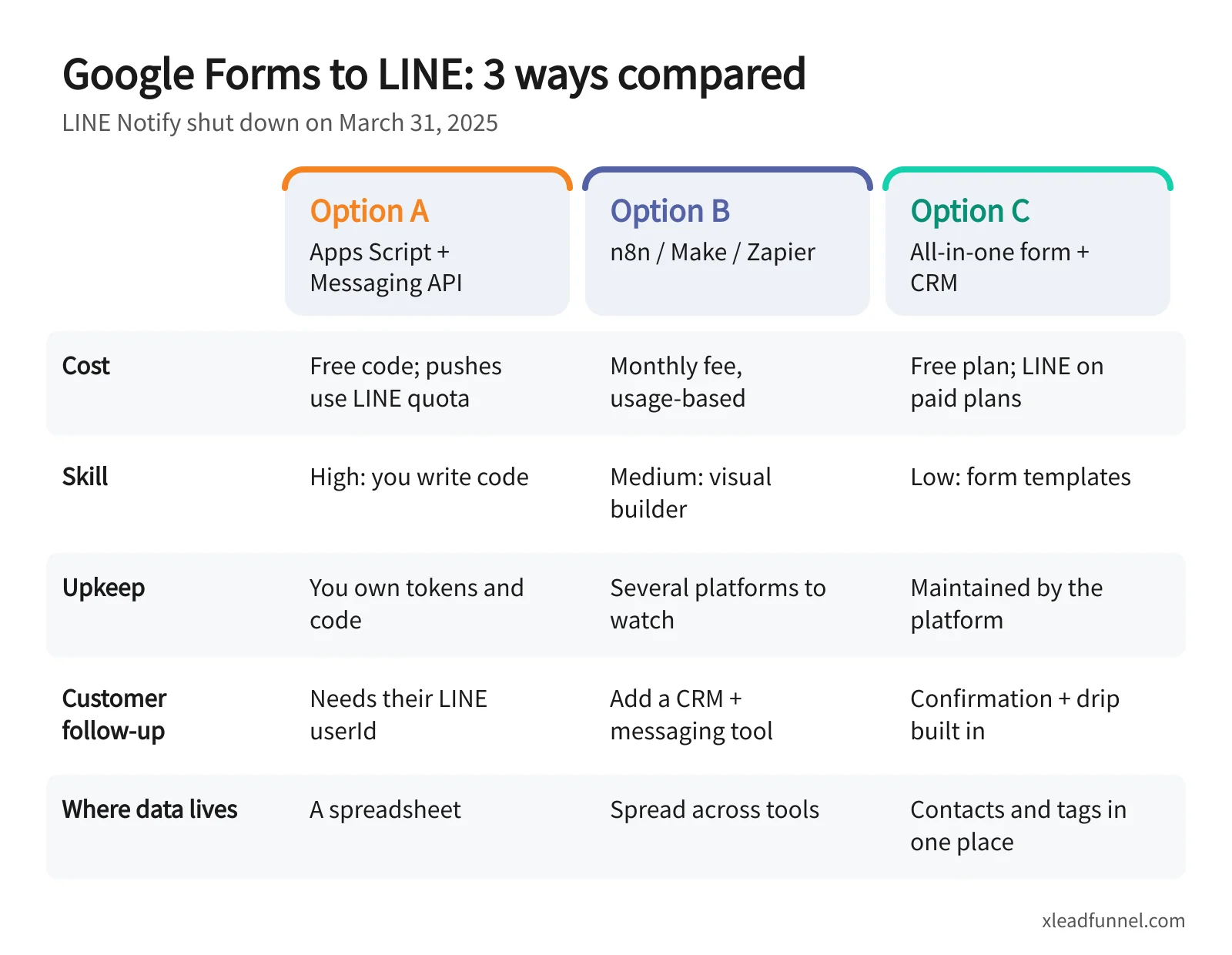
Whichever you choose, explain on the form how the data will be used, get consent before sending messages, and follow local privacy law — such as Taiwan's Personal Data Protection Act or Hong Kong's Personal Data (Privacy) Ordinance.
Which option should you choose?
A quick way to decide:
- Only need to know yourself, and get a handful of responses a month? Turn on Google Forms' built-in email notifications first; use Option A if you really need LINE.
- Comfortable with code and happy to maintain it? Option A is cheapest.
- Already on n8n, Make or Zapier, and need to sync other systems too? Option B fits best.
- Want every customer to get a confirmation and automatic, segmented follow-up? Option C is least work.
- Customers mostly on LINE? Whatever you pick, plan how they'll add your Official Account as a friend.
A common path: use Option A or B while volumes are small so nothing slips, then move lead capture and follow-up to Option C once the list grows and following up becomes a chore.
FAQ
Can Google Forms still send LINE notifications now that LINE Notify is gone?
Yes, through the LINE Official Account Messaging API. Call the push API from Google Apps Script or from n8n, Make or Zapier to send each response to yourself or your team. Old LINE Notify tokens no longer work.
Does sending form alerts through the Messaging API cost money?
LINE Official Accounts have a free plan with a monthly message allowance. Push messages count toward it, and you upgrade if you go over. Alerting yourself and a few colleagues usually fits within the free allowance — check the LINE Official Account plans page for current details.
Can Google Forms message the customer on LINE directly?
No. The Messaging API needs the customer's user ID, which you only get from people who have added or messaged your Official Account; a Google Form can't collect it. Follow up by email or SMS, or use a tool that integrates LINE and manages contacts.
Can Google Forms send a confirmation email automatically?
Google Forms can send respondents a copy of their responses, but that's just a record of their answers — you can't turn it into a proper branded confirmation or a follow-up. If you need custom confirmations and tag-based follow-up, consider lead forms with messaging built in.
Should I use n8n, Make or Zapier, or switch form tools?
If the form is one piece of a larger system that needs to sync in many places, a workflow platform is more flexible. If the goal is to capture, confirm and follow up in one go, a form tool with a built-in CRM and messaging leaves far fewer moving parts to manage.
Related articles
- Event Registration Form: Setup, Reminders & Check-in Guide
- Online Booking Form: What to Collect & How to Cut No-Shows
- From funnel form to follow-up: how multi-channel drip sequences actually work